

Copying and pasting from eCase allows you to copy document names and Doc ID numbers directly from eCase into memos of law. You can copy medical report info from eCase directly to a mileage reimbursement request. I also use copy and paste from eCase to copy the list of medical reports into a spreadsheet that I use to make notes regarding the medical reports.
When eCase ran on JavaScript you used to be able to highlight the text of the Case Folder, copy the text such as document ID number, and then paste. When eCase initially switched to HTML, you could copy and paste. Then the WCB disabled the ability to highlight and copy in the Case Folder, I assume because it made clicking on specific documents a little bit tricky/confusing. Fortunately, it is still possible to copy and paste from the Case Folder in eCase.
Please note you can still copy (ctrl-c) and paste (ctrl-v) in many other parts of eCase. E.g., You can copy and paste the total amount paid from the SROI tab in eCase.
Unblocking Copying from Case Folder Tab
To re-enable copying on sites that block it, install a browser extension. I use “Enable right click – allow copy & select” on Chrome and “Enable Right Click for Safari” on Safari. Many similar extensions exist — search your browser’s extension store and pick one with strong recent reviews before installing.
How is copying and pasting from the Case Folder in eCase useful?
First, you can copy and paste document information directly from eCase into a memorandum of law (MOL). This not only saves time, but it eliminates the risk that you will transpose or mistype a Doc ID number.
If you perform a normal paste into a word document you will end up with odd formatting like this:

Instead, paste as unformatted text. To do this, select the edit menu at the top of your Microsoft Word, select paste special, and select unformatted text. The keyboard shortcut for unformatted text paste is ctrl-shift-v. When you paste as unformatted text you will get something that looks like:

Just delete the tabs, add a little additional text, and you are done.
Copying and Pasting from eCase into Mileage Reimbursement Requests
Here is a Modified C–257 form that most carriers have been willing to accept.
- Copy the medical service information in eCase.
- Then click in the YELLOW cell at the far left edge.
- Paste as text (edit, paste special, text) and you will get something that looks like this:

- Enter the medical provider’s address.
- Once you enter the round trip mileage, the spreadsheet will calculate the amount of reimbursement. (If I forget to update the spreadsheet with next year’s mileage rate, please let me know).
- The spreadsheet will also calculate the total amount of reimbursement being requested.
- If you are a claimant:
- Make sure that you only claim mileage for office visits and not for telemedicine.
- Physical therapists and chiropractors often submit multiple visits on one bill. Open the medical report in eCase to make sure you request reimbursement for each date of service.
For more information on mileage reimbursement, click here.
Copying and Pasting from eCase into Excel to Summarize Medical Reports
I also use this Excel spreadsheet to copy and paste directly from eCase.
- Copy the medical reports from eCase.
- Click on column A, in the spreadsheet.
- Paste as text only (edit, paste special, text) and you will get something that looks like this:

- I then type the percentage of disability in column G and any notes in I.
- You can sort by date or other criteria by clicking the down arrow in row 1.
- If you highlight letters D through H in the row headings at the very top and right click, and then choose unhide, it will then show columns E, F, and H, which I keep hidden by default. You will then see:
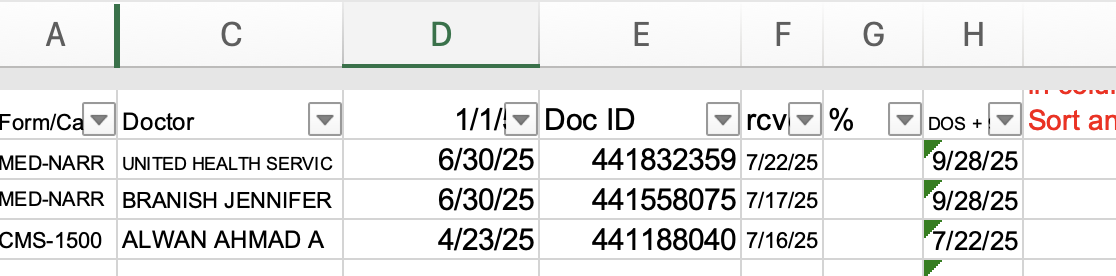
- Column E shows the Doc ID, F shows the received date, and Column H calculates the date of service plus 90 days.
Copying the C-8.1 List from the Judge’s Attention Tab
I also use copy and paste to grab the list of C-8.1s from the “Judge’s Attention” tab. That is the easiest way to get a list of disputed medical bills.
Leave a Reply
You must be logged in to post a comment.