

Below is a spreadsheet that calculates weekly rates for NY Workers’ Compensation cases.
It calculates weeks between two dates – including non-standard work weeks. It computes workers’ compensation awards and reduced earnings. This tool takes statutory minimums and maximums into account. Detailed directions are below the spreadsheet.
Click here for general information about New York Workers’ Compensation benefits.
NY Workers’ Comp Awards Calculator
To use the NY Comp. awards calculator, enter data into any of the colored cells. Your numbers will not be saved and will be lost when you leave or refresh this page.
Hard to read the spreadsheet? Open this calculator full screen.
To Start
- Enter the date of accident and average weekly wage in the YELLOW-ORANGE cells in the upper left (cells D117 and D118).
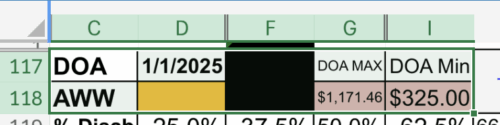
- You must enter a date of accident (DOA) since the spreadsheet accounts for weekly minimum and maximum rates which are based on the date of accident.
- Once you enter the DOA, the max and min rates will autofill into cells G118 and I118.
- I will try to update the spreadsheet with the new minimum and maximum rates as that information becomes available. You can manually enter the new minimum and maximum rates into cells G118 and I118 if needed.
NY Workers’ Compensation Rate Calculator
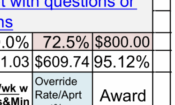
- Once you fill in the DOA and AWW, the commonly used weekly rates will be displayed in row 120 based on the percentages listed in row 119.
- To calculate a different rate, just enter the percentage into cell N119 (where it says “% to $”). The rate will be displayed below.
- To calculate the percentage of disability based on a weekly rate, enter the weekly rate into cell O119 (“$ to %”), and the percentage will be listed below.
NY Workers Compensation Awards Calculator
- To calculate awards for a given period of time, start by entering the start date and end date in row 122 under “From” and “To” respectively.
- The number of weeks will be displayed in column G under “Weeks.”
- Please note: The New York Workers’ Compensation Board includes an “extra day” at the end of its date calculations. This spreadsheet is programmed to mimic the WCB’s method of calculating dates.
- For example, if you went out of work on a Monday 12/1/25 and returned to work one week later, the NY WCB would make awards for the one week you were out of work from 12/1/25 to 12/8/25 (an 8 day period, ending on the day you returned to work). The Board calculates this as one week. The next period of awards starts on 12/8/25, the final day of the prior period of awards.
- Enter the % of Disability in Column I under “Disb %.”
- You do not need to enter a percentage of disability if you enter earnings in Column J, since the reduced earnings calculations will supersede the out-of-work rate.
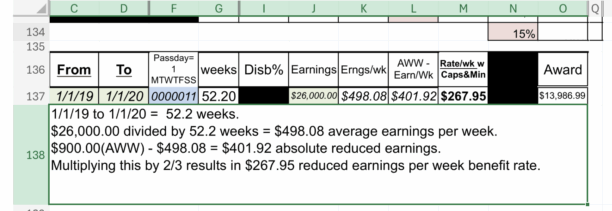
- To calculate reduced earnings, enter the claimant’s wages earned in the entire period in Column J under “Earnings.”
- Once you enter the earnings, the weekly earnings and the difference between the AWW and the weekly RE will be displayed in columns K and L under “Erngs/wk” and “AWW – Earn/Wk” respectively.
- The RE benefit rate will display in column N under “Rate/wk w Caps&Min.” This is adjusted for the statutory minimums and maximums.
- If you enter a rate in column N, that rate will be used instead of the calculated rate to determine overall awards.
Optional: Non-Standard Workweek/Pass Days
- You can adjust the pass days in Row F under “Pass day.”
- The days of the week are listed as MTWTFSS with pass days represented by a 1 and workdays represented with a 0.
- For a worker working Monday through Friday their workweek would be written as 0000011 — this is the default.
- For someone who works Mon to Thurs, and has Sat, Sun, and Mon off their work week should be written 1000011.
- The days of the week are listed as MTWTFSS with pass days represented by a 1 and workdays represented with a 0.
Apportionment
- Apportionment can be addressed in several ways:
- If you enter a percentage into cell N131 (the LIGHT BLUE cell), the rates from column M will be multiplied by that percentage for all ten rows of award calculations.
- You can apportion a single rate as you would with any Excel formula by multiplying the rate from column N by the apportionment percentage.
- Eg. For 50% apportionment in row 122 you would need to enter the following into cell N122: =M122*50%.
- You can manually enter the apportioned rate in column N.
- The overall awards will be displayed in column O under “Award.”
Reduced Earnings Calculator
Enter the data into the RE calculator tool, and it will show each step of the RE calculations. You can then select that cell and copy (control-c) and paste (control-v) wherever you want.
Leave a Reply
You must be logged in to post a comment.